How does an Amway Customer upgrade to become an IBO?
Who's this guide for?
- Existing Customers of Amway Australia or New Zealand
What's in this guide
- Login
- Where to Upgrade to IBO
- Primary Applicant Details
- Co-Applicant Details (optional)
- Build You Own Kit
- Confirm Delivery Address
- Quick Add (optional)
- Review Terms & Conditions
- Preview
- Payment
- Confirmation
Step 1: Login
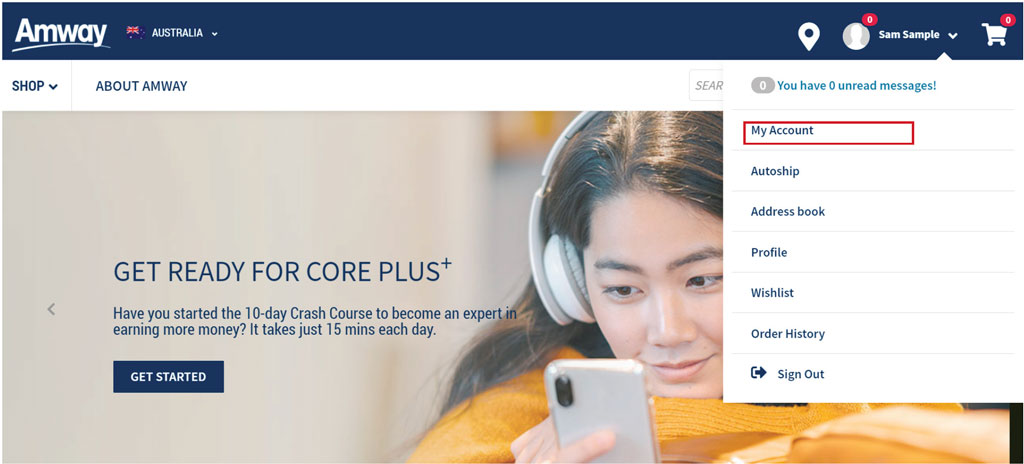
Login to amway.com.au or amway.co.nz as a Customer using your Amway ID. Navigate to My Account.
Step 2: Start Upgrade
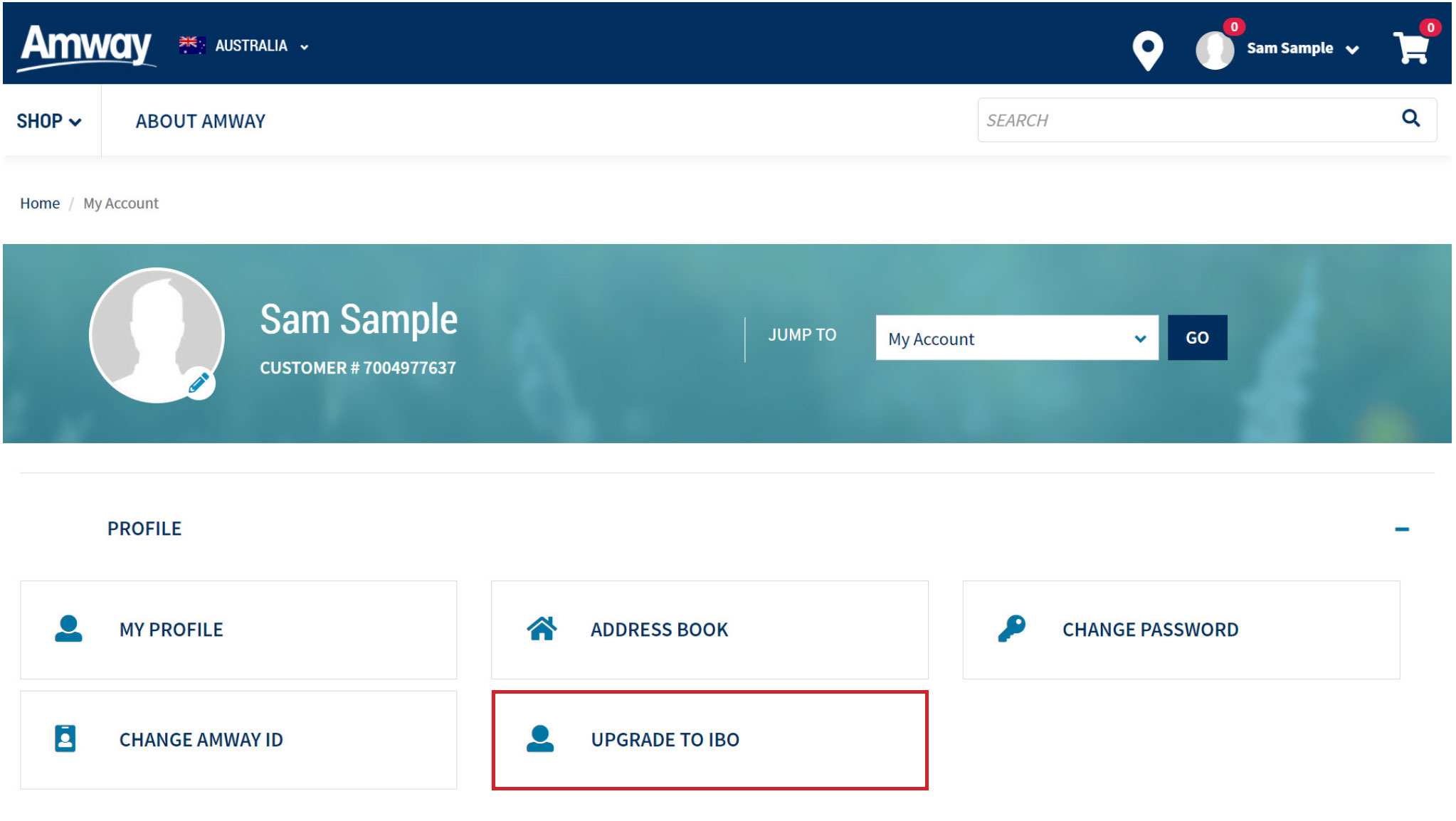
Under PROFILE, click 'Upgrade to IBO'.
Step 3: Primary Applicant
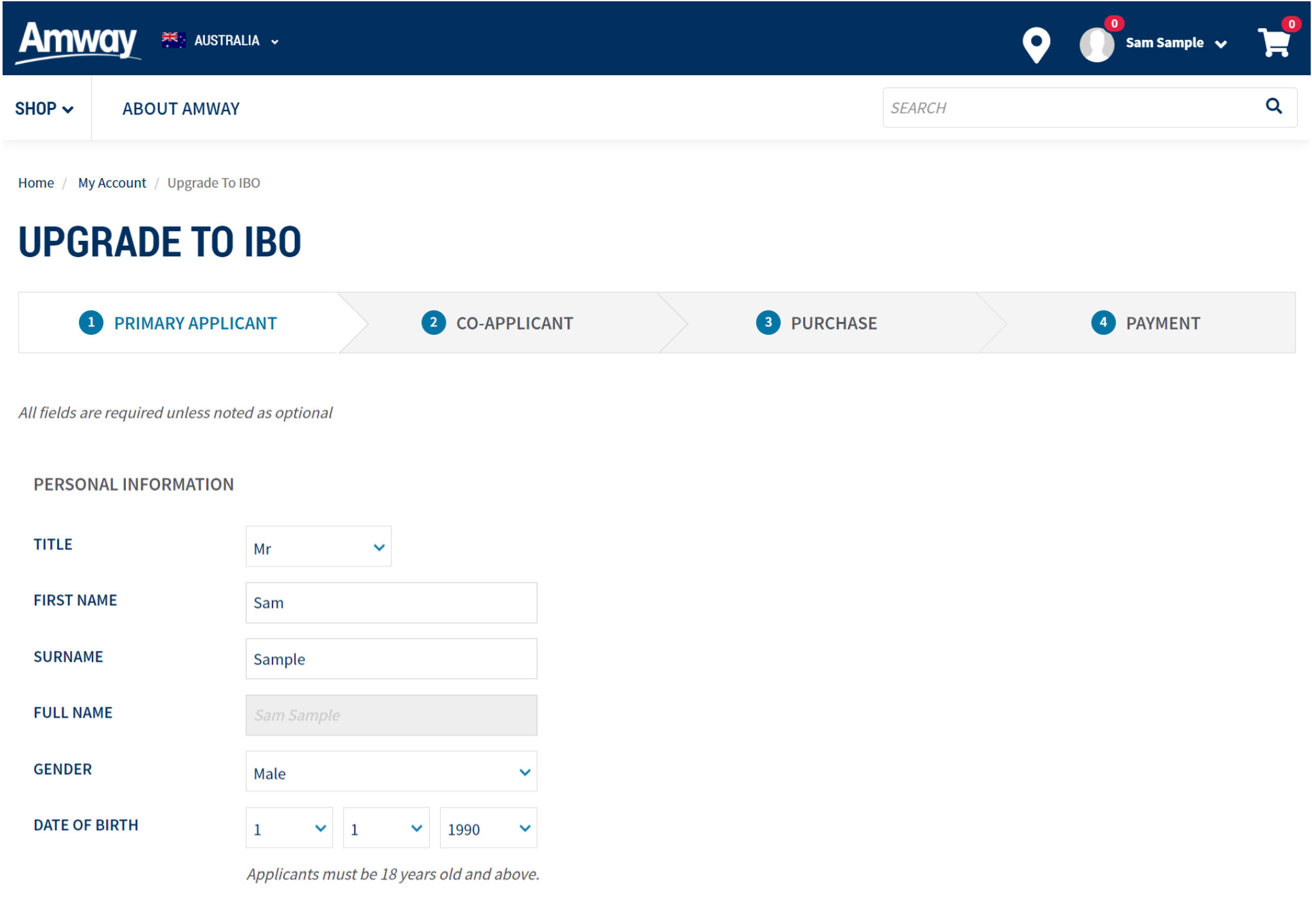
- Review the pre-filled information to make sure they are accurate.
- Fill out your personal information. All required fields are mandatory unless noted as optional.
- If you’ve previously used a nickname, please update to your legal name.
- Your sponsor will remain the same and cannot be changed as part of the upgrade.
Things to know:
- As the upgrading customer, you will automatically be the Primary Applicant on your upgraded IBO account.
- Add a co-applicant if applicable.
Step 4: Co-Applicant (optional)
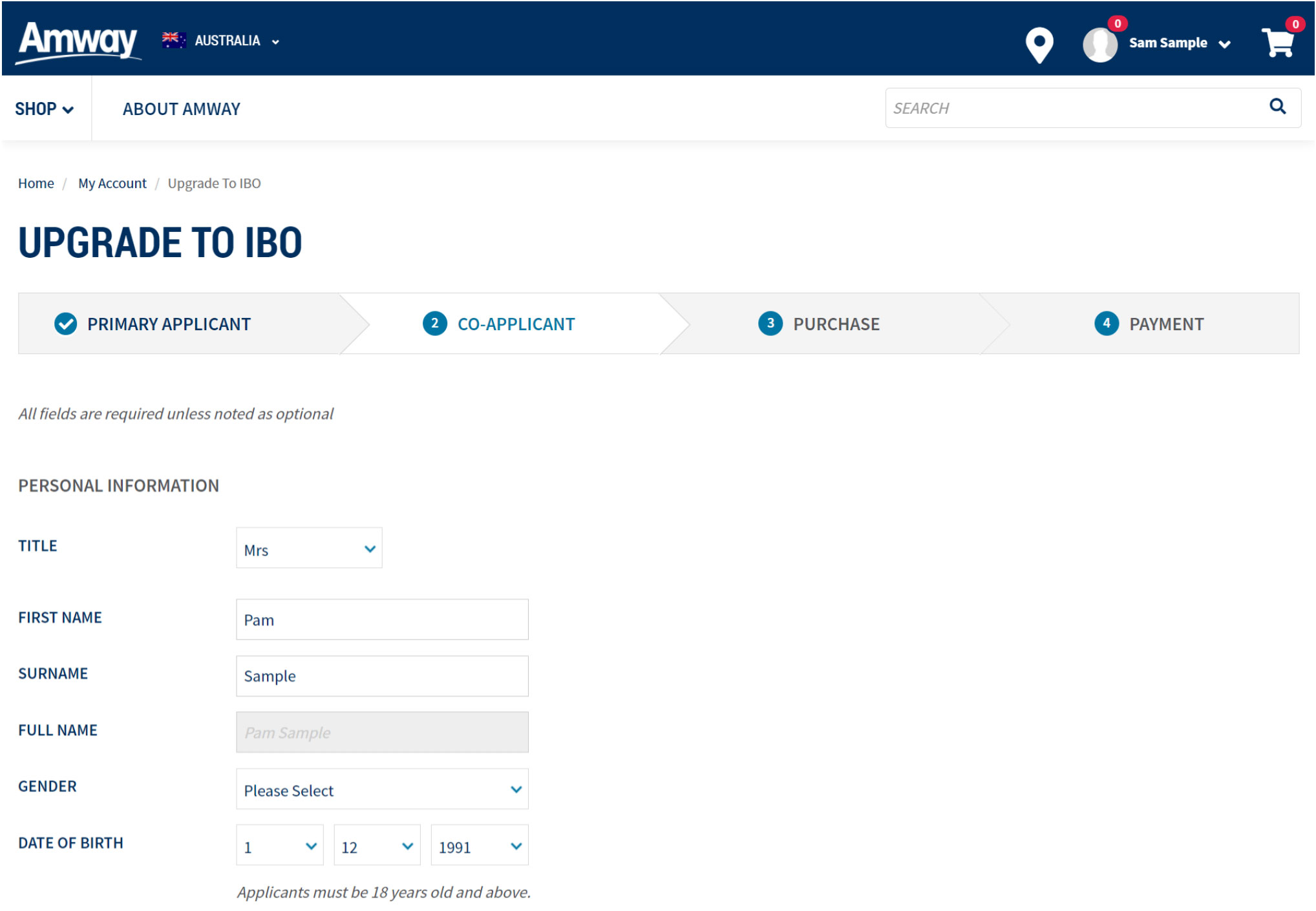
- Add a co-applicant if applicable.
- Enter Co-Applicant Details. Including a unique and valid email address (note this needs to be different from the email used for the Primary applicant).
- Click ‘PROCEED TO PURCHASE'.
- To add a co-applicant, tick the co-applicant checkbox.
Step 5: Build Your Own Kit
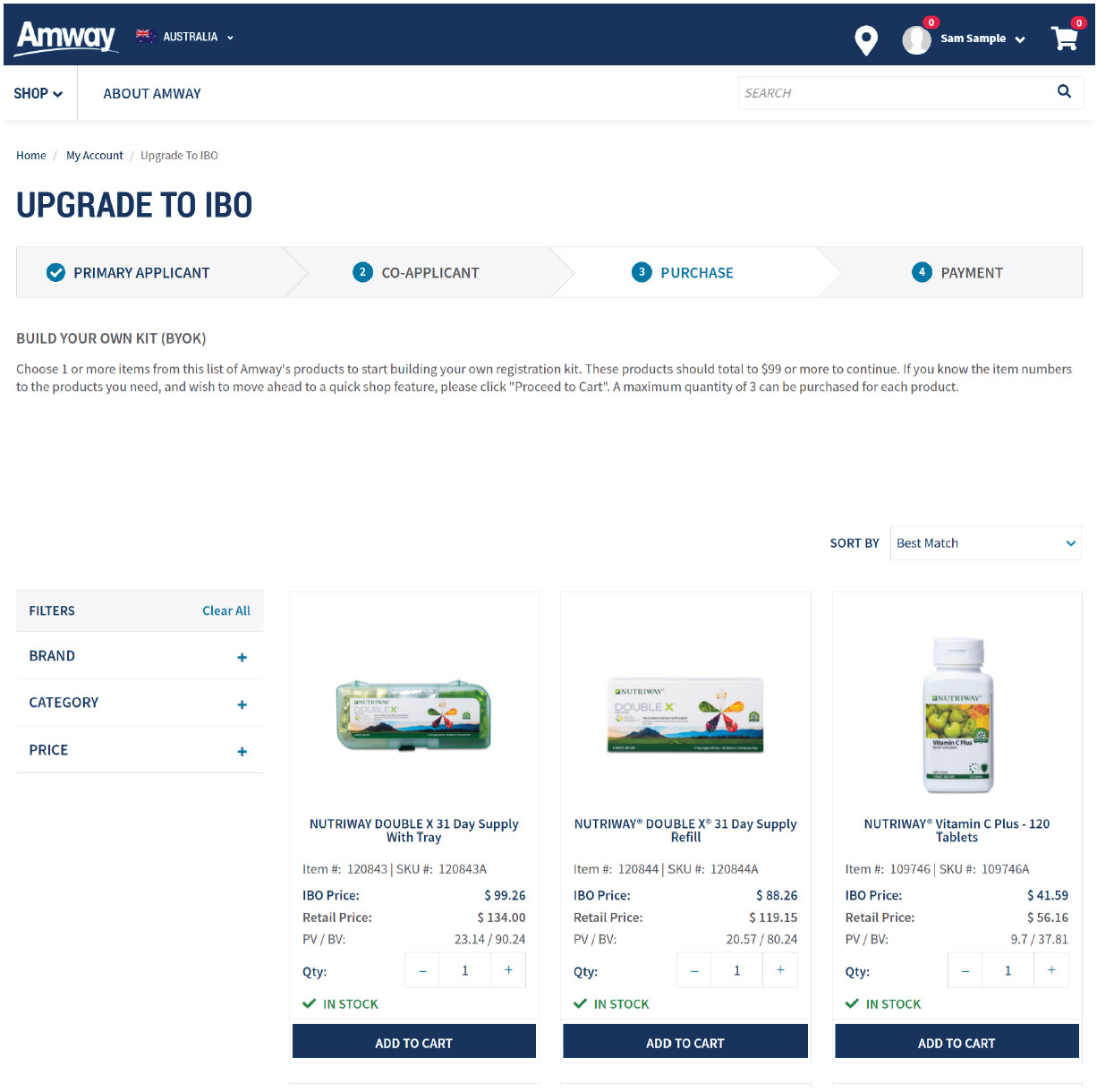
To complete upgrade to become an IBO you will need to purchase $99 AU or $119 NZ worth of products. Use the Brand, Category or Price filters to browse and select your products and then click PROCEED TO CART.
Things to know
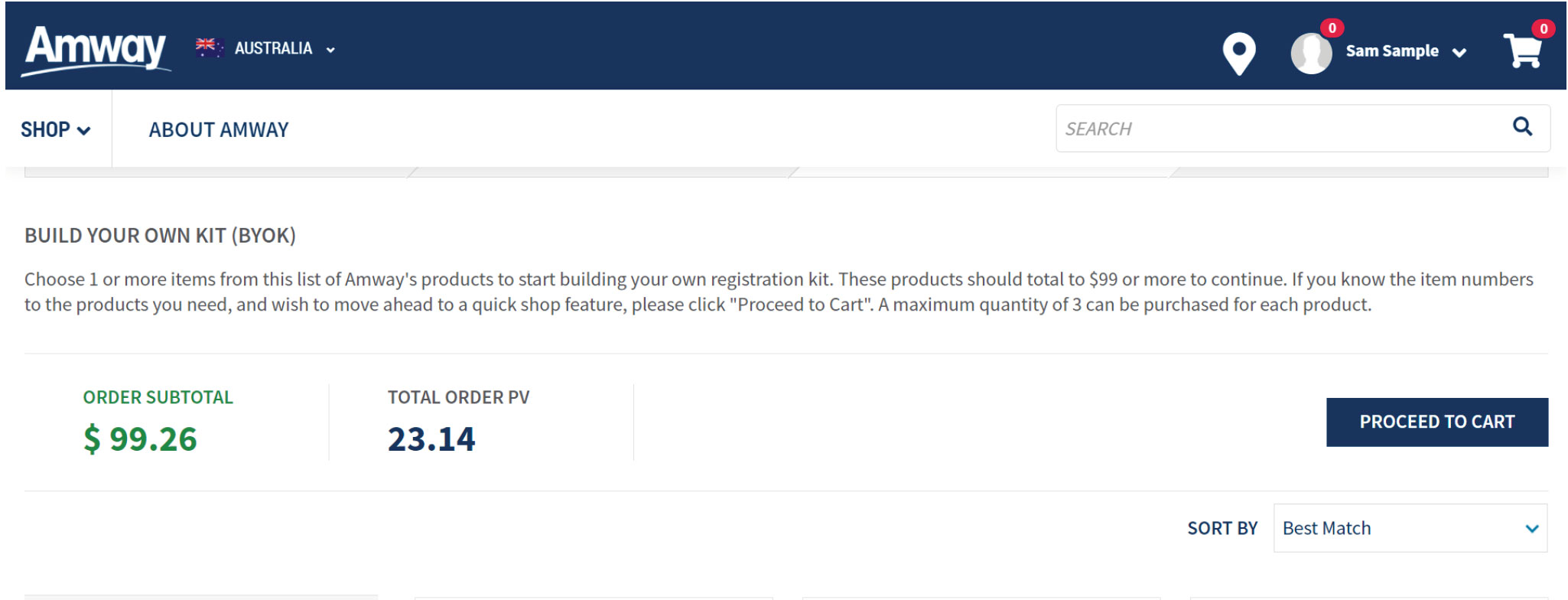
- Once you have reached the correct $ value the PRODUCT TOTAL will turn from red to green.
- If you already know the products you would like to purchase, you can skip this step and use the QUICK ADD feature on the next page.
Step 6: Check Delivery Address
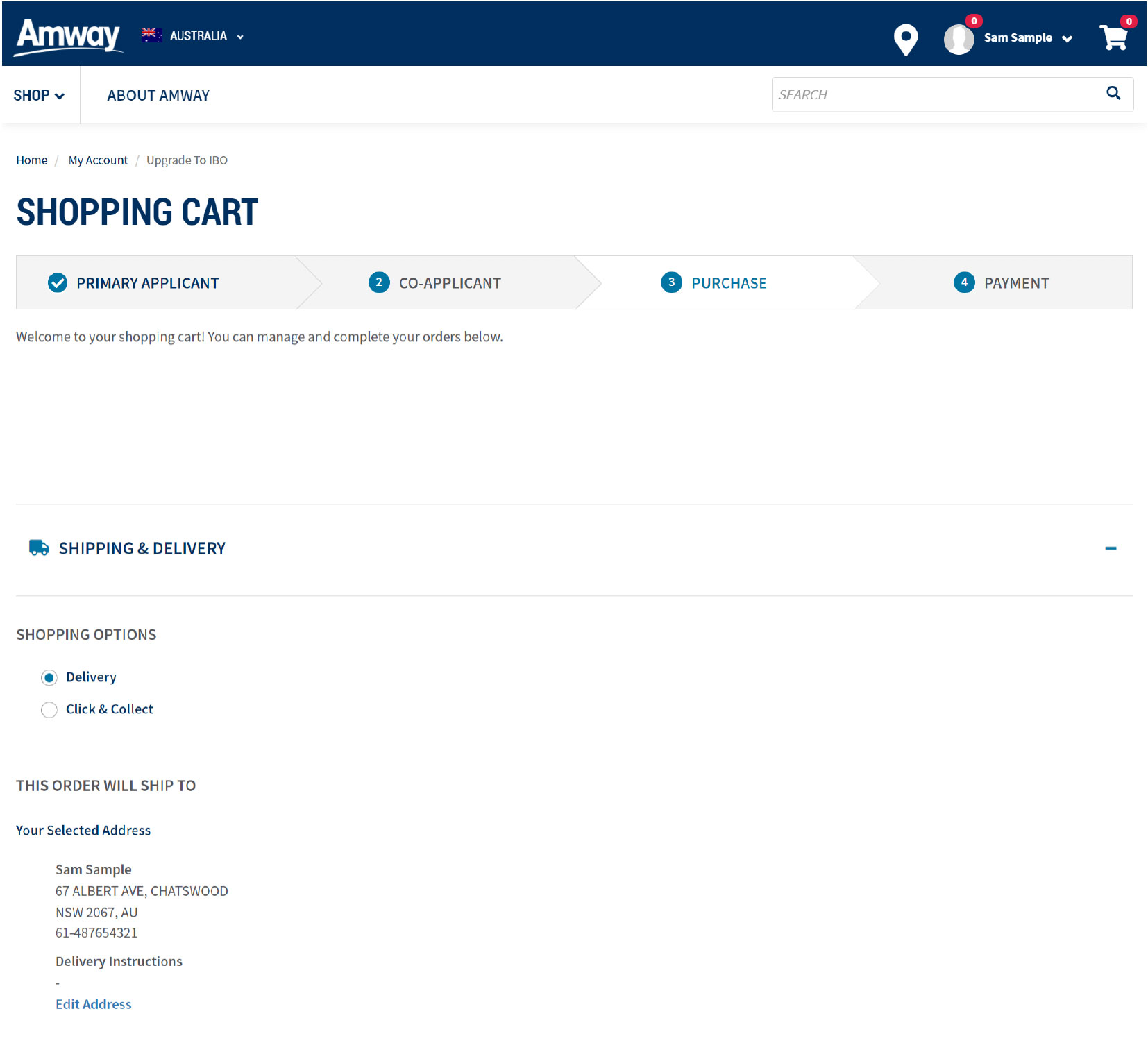
Check your delivery options.
You can choose to have your order delivered to your address. Or you can pick it up from your local Business Centre by choosing Click & Collect.
Step 7: Quick Add (optional)
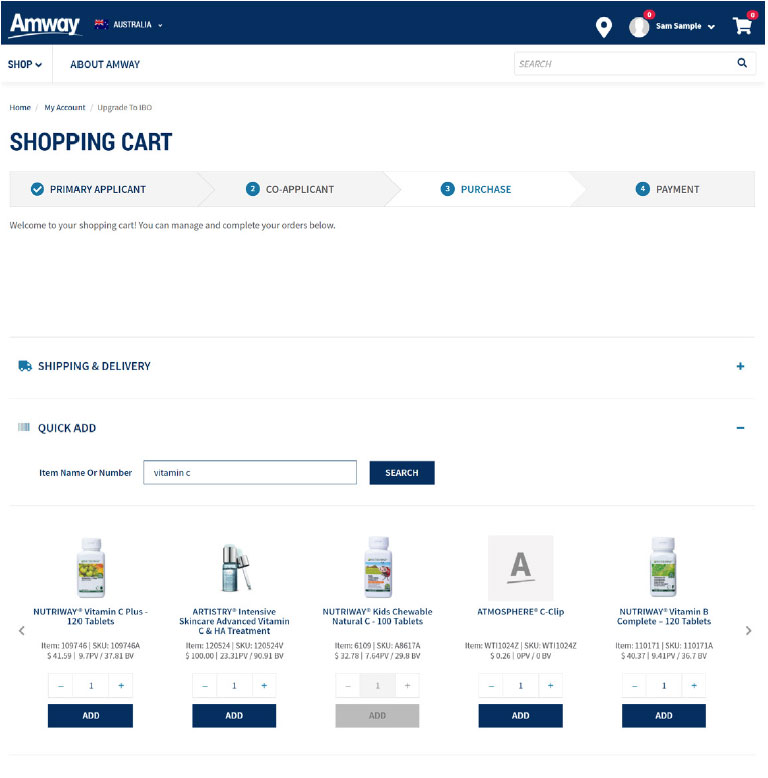
To add more item/items go to QUICK ADD search the Item Number/ Name or Description and then select ADD.
Step 8: Review the Terms & Conditions
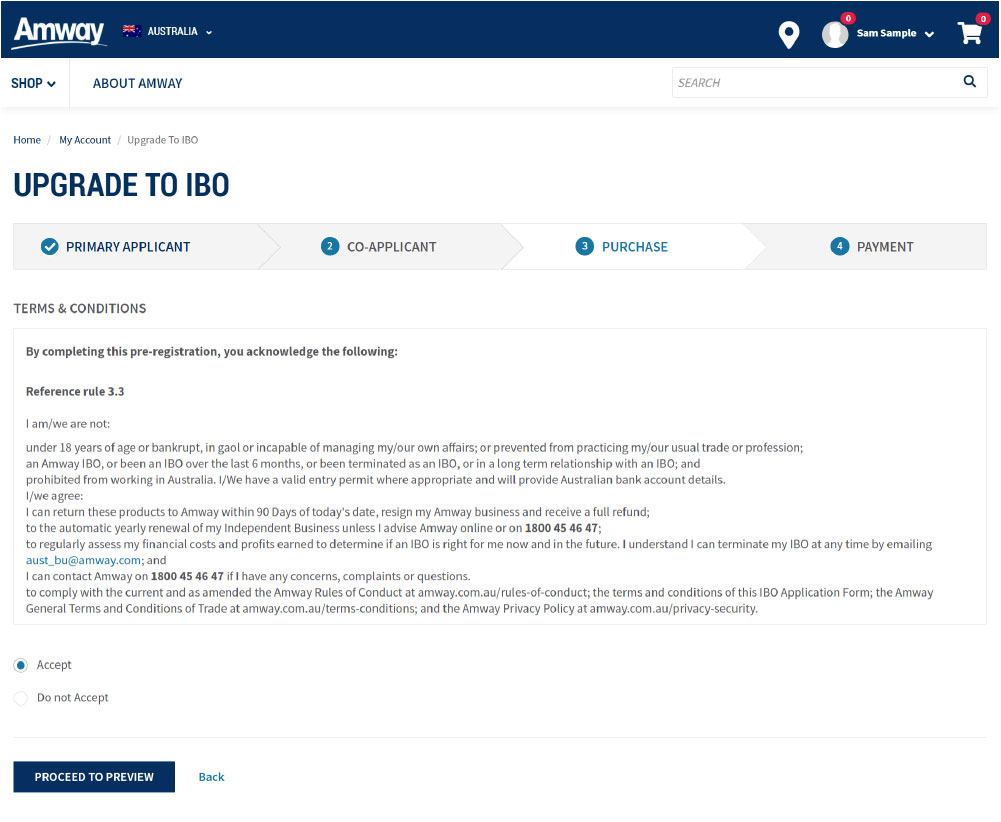
Please read and review the Terms & Conditions. Then click PROCEED TO PREVIEW.
Step 9: Preview
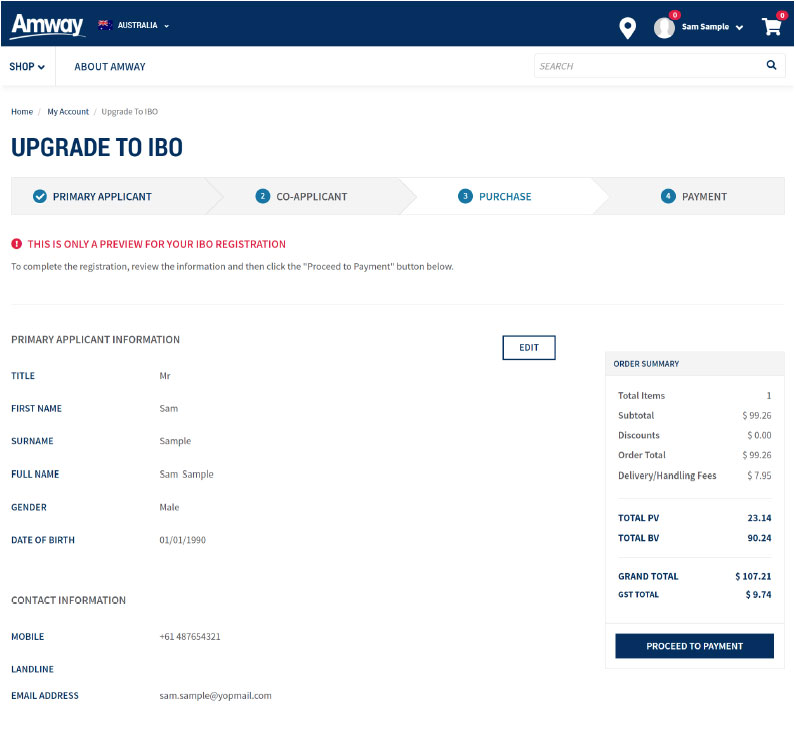
Preview your personal details and click on the EDIT button if you need to make any changes. Once changes are complete click on the “Save” button and you will come back to the review page.
Click on PROCEED TO PAYMENT.
Step 10: Payment
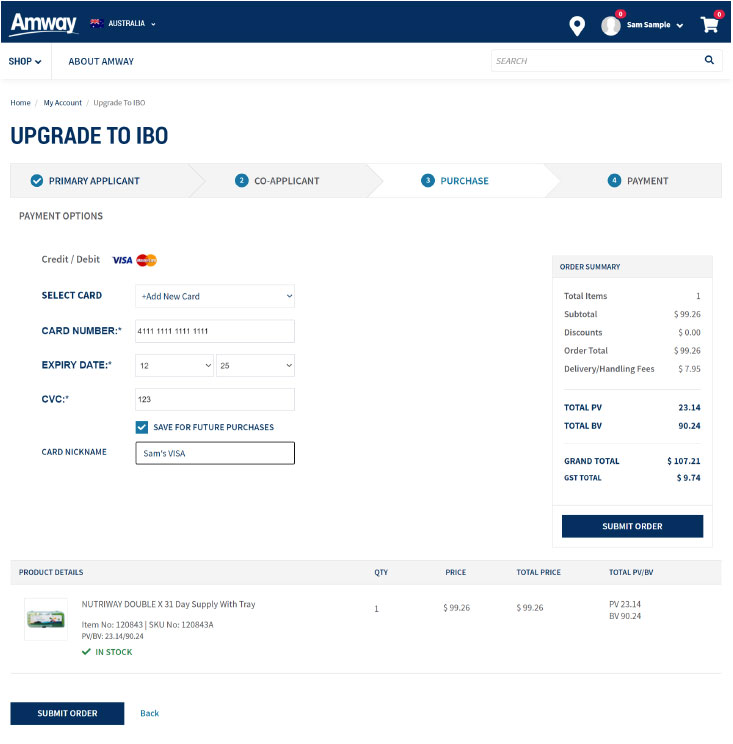
Use your saved card details, or enter a new card. (Please keep your Mobile phone close as you may be asked to provide a Verification code that your bank will SMS you).
Click SUBMIT ORDER.
Step 11: Confirmation
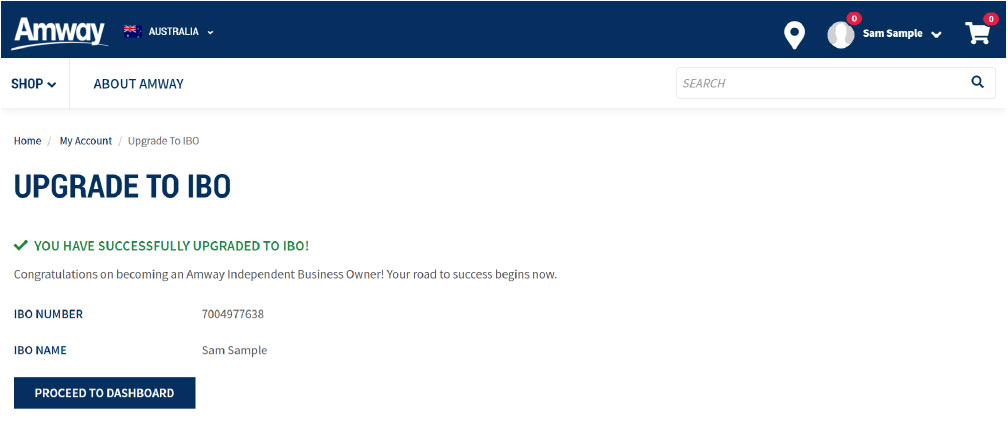
Your upgrade is now complete, and a confirmation email will be sent to your email inbox. You can now click on PROCEED TO IBO DASHBOARD to view your new IBO tools.